Faculty: What's New in Moodle 4.5
Completion requirements
Edit Your Course
Edit Sections
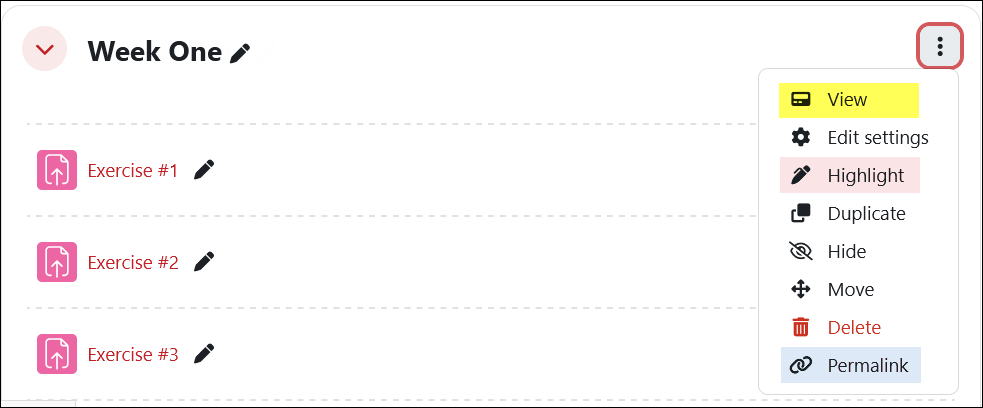
When you open the Edit options for a section, we have some new options:
- View opens the section in its own page so you can focus on building or updating the materials solely in that section. (Note: For all users, clicking on the name of a section in the Course index on the left will display just the elements in that section. Click on another section name or the Course tab at the top of the page to return to the main course page.)
- If you’re using the “Custom sections” course format (the “Topics” course format has been renamed to more accurately describe their function), you can highlight a section (the current week is automatically highlighted in the weekly course format—see these instructions if the wrong week is being highlighted in your course).
- The Permalink feature allows you to create a link to the section that you can paste elsewhere to give users quick access to the section (a handy tool if you have a section devoted to course or project information and want to refer students to it).