Faculty: What's New in Moodle 4.5
Completion requirements
Insert Images
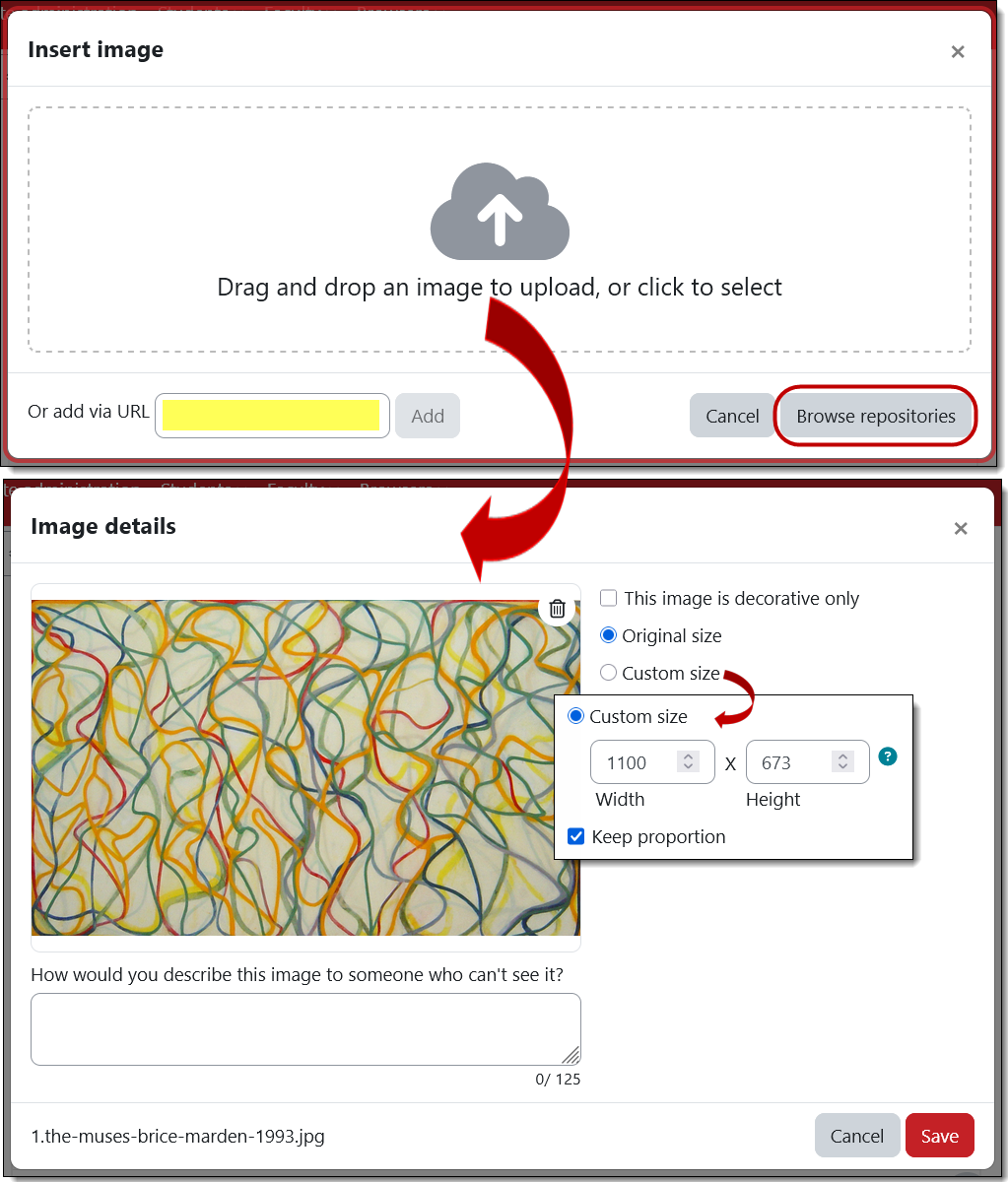
The interface for uploading an image has been simplified. Drag and drop an image, enter the url of an image or browse your files to select an image. Once your image appears in the Image details interface, you’ll be prompted to enter a description of it (“alt text”) or check the box that it is decorative and does not connote broader meaning (see this guide to writing alt text). For your reference, the custom sizing option is measured in pixels — there are 100 pixels to an inch. (Note for nerds: If you are accustomed to using percentages for image sizing, that is no longer supported in 4.5. 😢)